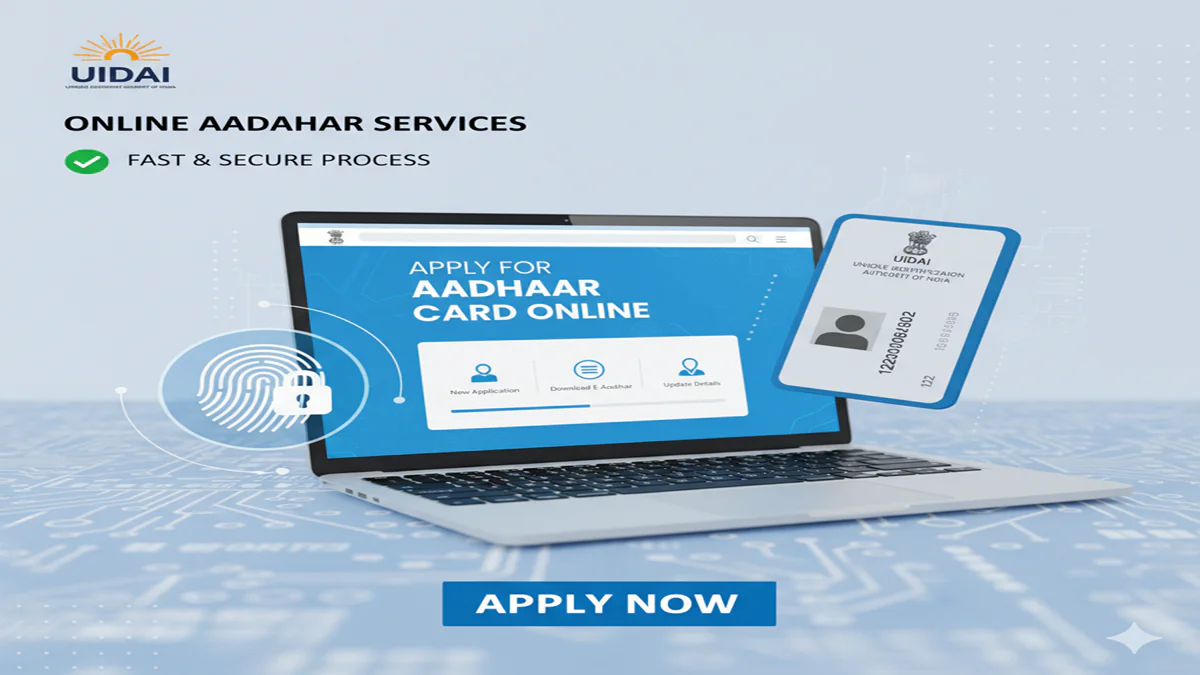
Your Complete Guide to Applying for an Aadhaar Card Online: A Step-by-Step Process with UIDAI
Online Aadhar Card Apply Uidai In today’s digitally driven India, the Aadhaar card has evolved from being just an identity proof to a critical document that facilitates access to a myriad of services—from opening bank accounts and filing tax returns to availing government subsidies and verifying identities for mobile connections. Issued by the Unique Identification Authority of India (UIDAI), this 12-digit unique number is a cornerstone of the country’s digital infrastructure.
While the traditional method of visiting an Aadhaar Enrollment Centre is well-known, many are unaware that a significant portion of the process can now be initiated and managedonline. This guide provides a detailed, step-by-step walkthrough of the online Aadhaar card application process, clarifies what can and cannot be done online, and answers the most pressing FAQs.
Understanding the Online Aadhaar Application: A Hybrid Process
It is crucial to understand from the outset that obtaining a brand new Aadhaar card for the first time cannot be completed entirely online. This is due to the mandatory biometric verification (capturing fingerprints, iris scan, and photograph) that requires your physical presence at an authorized centre. However, UIDAI’s online portal (www.uidai.gov.in) and the mAadhaar mobile app are powerful platforms that streamline the process by allowing you to:
- Book an appointmentat an enrollment centre online, saving waiting time.
- Fill the Aadhaar Enrollment Form (Online)beforehand.
- Download e-Aadhaar, a password-protected PDF that is equally valid as the physical card.
- Manage and updateyour Aadhaar details online post-enrollment.
This article focuses on the seamless integration of online pre-work and the essential offline biometric step.
Part 1: The Step-by-Step Process for First-Time Applicants
- Visit the Official Portal:Go to the UIDAI website:https://uidai.gov.in/.
- Locate the Enrollment Centre:Click on ‘My Aadhaar’ in the top menu, then select ‘Locate an Enrollment Centre’. You can search by state, district, postal code, or search for a specific centre.
- Book an Appointment (Optional but Recommended):While walk-ins are accepted, many centres now offer online appointment booking to avoid crowds. Check if your chosen centre provides an online booking link or telephone number for scheduling.
- Fill the Form Online (Saves Time):Under ‘My Aadhaar’, select ‘Book an Appointment’. You will be redirected to theAadhaar Enrollment Pre-registrationpage (https://appointments.uidai.gov.in/). Here, you can:
- Fill in your personal details (name, gender, year of birth, address, mobile number, email).
- Select your chosen enrolment centre based on pin code/search.
- Choose a convenient date and time slot (if available).
- Submit the form to generate aPre-Registration ID (PRN).
- What to Take Note Of:Print or save a digital copy of thePRN slip. This contains your appointment details and a QR code. Also, note down the enrolment centre’s address and timing.
Step 2: The Essential Offline Visit (Biometric Enrollment)
- Visit the Centre:Go to the Aadhaar Enrollment Centre at your scheduled time with the necessary documents.
- Required Documents:Carry original and photocopies of:
- Proof of Address (PoA):Utility bill (water/electricity/gas), Bank Statement, Passport, etc.
- Proof of Date of Birth (DoB):Birth Certificate, SSLC Marksheet, Passport, etc.
- Mobile Number & Email ID:Not documents, but the numbers/IDs must be active and provided during enrollment. They are crucial for OTP-based services.
- Submission and Biometric Capture:Submit your documents and the PRN slip (if you pre-registered). The operator will verify the documents, enter your details into the system, and capture yourphotograph, all ten fingerprints, and both iris scans.
- Acknowledgement Slip:Upon completion, you will receive anAadhaar Enrollment/Update Slip. This contains a14-digit Enrollment ID (EID)and the date and time of enrollment.Keep this slip safe.It is your temporary proof of enrollment and is needed to check the status and download your Aadhaar later.
Step 3: Post-Enrollment Online Tracking & Download
- Check Aadhaar Status:Go to ‘My Aadhaar’ > ‘Check Aadhaar Status’ on the UIDAI portal. Enter your 14-digitEID(from the acknowledgement slip) and the captcha code. Click ‘Check Status’.
- Download e-Aadhaar:Once the status shows “Your Aadhaar has been generated,” you can download it. Go to ‘My Aadhaar’ > ‘Download Aadhaar’. You can retrieve it using yourEIDor registeredAadhaar Number.
- Password for Opening e-Aadhaar:The downloaded PDF is secured with a password. It is a combination of thefirst four letters of your name (in CAPITAL letters)and youryear of birth (YYYY).
- Validity of e-Aadhaar:The e-Aadhaar (in PDF format) is a legally valid, password-protected document as per the Aadhaar Act, 2016. It can be used wherever Aadhaar is accepted as proof of identity and address.
Once you have your Aadhaar number, a vast array of services become available online without visiting any centre.
- Downloading Aadhaar:As explained above, using EID or Aadhaar number.
- Updating Details:You can updatedemographic details(Name, Address, Date of Birth, Gender, Mobile, Email) andphotographonline.
- Visit ‘My Aadhaar’ > ‘Update Your Aadhaar’ > ‘Update Demographics Data Online’.
- Log in with your Aadhaar number and the OTP sent to your registered mobile.
- Select the field you wish to update. For an address update, you can use theSelf-Service Update Portal (SSUP)where you only need an address proof document. For other updates like name or DoB, you may need supporting documents which can be uploaded online.
- Pay a nominal fee of ₹50 (for each field update request).
- You will receive anUpdate Request Number (URN)to track the status online. The update is processed after verification.
Important: Biometric updates (fingerprints, iris) still require a visit to a Permanent Aadhaar Centre (PAC).
Part 3: The Power of mAadhaar Mobile App
UIDAI’s official mAadhaar app is a digital wallet for your Aadhaar profile. Key features include:
- Carry your Aadhaar profile on your smartphone.
- Lock/Unlock Biometric Authentication for privacy.
- Share eKYC or QR code with service providers.
- Update your profile (if mobile is registered).
- View update history.
Part 4: 5 Frequently Asked Questions (FAQs) for Online Aadhaar Apply
FAQ 1: Can I apply for a completely new Aadhaar card from home without visiting any centre?
Answer: No. For first-time enrollment, biometric data (fingerprints, iris scan, and photograph) is mandatory and must be captured at a physical Aadhaar Enrollment Centre. However, you can pre-register online, fill the form, and book an appointment to make the in-person visit quicker and more efficient.
FAQ 2: What is the difference between the Enrollment ID (EID) and the Aadhaar number? Where do I find them?
Answer: The Enrollment ID (EID) is a 14-digit temporary number issued on the acknowledgement slip you receive after completing the enrollment process at the centre. It is used to track the status and download your Aadhaar before you receive the physical card. The Aadhaar Number is the permanent 12-digit unique identity number that is generated after processing and is printed on your Aadhaar card. You will receive it via SMS on your registered mobile number once it’s generated.
FAQ 3: Is the downloaded e-Aadhaar PDF as valid as the physical plastic card?
Answer: Absolutely. According to the Aadhaar Act, 2016, and rulings by the Ministry of Electronics & IT, the e-Aadhaar (password-protected PDF) is equally valid as the physical card for all purposes, including identity proof, KYC, and availing services. The password (first 4 letters of name in CAPS + YOB) ensures its security.
FAQ 4: I have lost my Aadhaar card and don’t remember the Enrollment ID. How can I get a reprint?
Answer: You do not need the EID for a reprint if you have your Aadhaar number. Simply:
- Visit the ‘Retrieve Lost or Forgotten EID/UID’ service on the UIDAI website.
- You can retrieve your Aadhaar number using your registered mobile number and your full name.
- Once you have the number, use the ‘Order Aadhaar Reprint’ service. Pay a nominal fee (₹50), and a printed copy will be dispatched to your registered address via post.
FAQ 5: My mobile number is not registered/linked with my Aadhaar. Can I still use online services?
Answer: Your registered mobile number is the key to most online Aadhaar services as it is used for OTP authentication. If your number is not linked, you will be unable to update details online, download e-Aadhaar digitally, or use many e-KYC services. To register/link your mobile number, you must visit an Aadhaar Enrollment Centre and submit a biometric update request. This is the only way to add or change a registered mobile number.
Conclusion: Embracing the Digital Aadhaar Ecosystem
The process of applying for an Aadhaar card has been significantly streamlined through UIDAI’s digital initiatives. By leveraging the online pre-enrollment, appointment booking, and the powerful post-enrollment management services, residents can save considerable time and effort.
ThemAadhaarapp further puts the power of this identity document in your smartphone. Remember, while the initial biometric step is irreplaceable for security reasons, the entire lifecycle of your Aadhaar—from checking status and downloading it to updating details and locking biometrics—can be managed from the comfort of your home. Always rely on the official UIDAI website (https://uidai.gov.in) and be cautious of fraudulent third-party sites promising instant Aadhaar services for a fee. Your 12-digit Aadhaar is more than a card; it’s your key to India’s digital future, and managing it online is secure, simple, and efficient.