


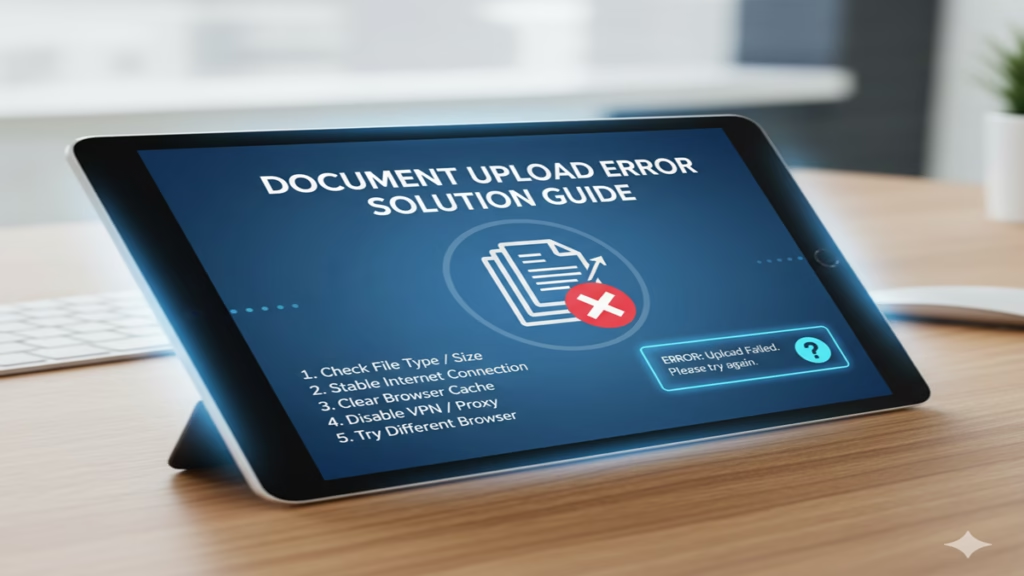
Document Upload Error Solution Guide: सरकारी फॉर्म या वेबसाइट पर डॉक्यूमेंट अपलोड नहीं हो रहा? जानिए सभी एरर और उनके सटीक समाधान!
Document Upload Error Solution Guide Introduction: आज 22 अप्रैल 2026 है और आज के दौर में लगभग सभी सरकारी और निजी काम ऑनलाइन हो गए हैं। चाहे स्कॉलरशिप का फॉर्म भरना हो, जॉब के लिए अप्लाई करना हो या बैंक में केवाईसी (KYC) अपडेट करना हो, हमें अपने दस्तावेज ऑनलाइन अपलोड करने पड़ते हैं। लेकिन अक्सर स्क्रीन पर एक मैसेज आता है—“Document Upload Failed” या “Error in Uploading File”।
यह समस्या तब और भी परेशान करने वाली हो जाती है जब फॉर्म जमा करने की अंतिम तिथि करीब हो। यदि आप भी “Document Upload Error Solution Guide” की तलाश कर रहे हैं, तो यह लेख आपके लिए रामबाण साबित होगा। यहाँ हम उन सभी तकनीकी कारणों और उनके समाधानों पर चर्चा करेंगे जिनकी वजह से फाइल अपलोड फेल होती है।
1. फाइल साइज की समस्या (File Size Issue)
Document Upload Error Solution Guide अपलोड फेल होने का सबसे आम कारण फाइल का आकार (Size) है। हर वेबसाइट की एक सीमा होती है (जैसे 500 KB या 2 MB)।
- समाधान: यदि आपकी फाइल बड़ी है, तो ‘Online PDF Compressor’ या ‘Image Resizer’ का उपयोग करें। हमेशा ध्यान दें कि फाइल का साइज दी गई सीमा से कम ही रहे।
2. गलत फाइल फॉर्मेट (Incorrect File Format)
Document Upload Error Solution Guide वेबसाइट अक्सर केवल PDF, JPEG या PNG फॉर्मेट ही स्वीकार करती हैं। यदि आप Word फाइल या कोई अन्य फॉर्मेट अपलोड कर रहे हैं, तो एरर आएगा।
- समाधान: अपलोड करने से पहले चेक करें कि फाइल का एक्सटेंशन क्या है। जरूरत पड़ने पर ‘Convert to PDF’ जैसे टूल्स का इस्तेमाल करें।
3. इंटरनेट कनेक्टिविटी (Internet Connectivity)
Document Upload Error Solution Guide कमजोर इंटरनेट स्पीड के कारण सर्वर के साथ कनेक्शन टूट जाता है, जिससे ‘Timeout Error’ आता है।
- समाधान: सुनिश्चित करें कि आप एक स्थिर वाई-फाई या 5G नेटवर्क पर हैं। अपलोड शुरू करने से पहले एक बार ‘Speed Test’ जरूर कर लें।
4. ब्राउज़र और कैशे की समस्या (Browser Cache & Cookies)
Document Upload Error Solution Guide कभी-कभी ब्राउज़र में जमा पुरानी कुकीज़ (Cookies) नई फाइल को प्रोसेस करने में बाधा डालती हैं।
- समाधान: अपने ब्राउज़र की सेटिंग में जाकर ‘Clear Cache and Cookies’ करें। इसके अलावा, वेबसाइट को ‘Incognito Mode’ (गुप्त मोड) में खोलकर प्रयास करें, यह अक्सर काम कर जाता है।
5. फाइल का नाम (File Naming Convention)
Document Upload Error Solution Guide क्या आपकी फाइल का नाम बहुत लंबा है या उसमें @, #, $ जैसे विशेष अक्षर (Special Characters) हैं?
- समाधान: फाइल का नाम छोटा और सरल रखें (जैसे:
My_Adhaar.pdf)। नाम में स्पेस या स्पेशल कैरेक्टर्स देने से बचें।
6. डिजिटल टूल्स और सुरक्षा (Smart Solutions 2026)
Document Upload Error Solution Guide 2026 में अब कई ऑटोमेटेड टूल्स आ गए हैं जो अपलोड करने से पहले आपकी फाइल को खुद ही ऑप्टिमाइज़ कर देते हैं। Solaris Digital जैसे प्लेटफॉर्म्स अब ऐसे कस्टमाइज्ड टूल्स प्रदान कर रहे हैं जो आपके दस्तावेजों को सरकारी पोर्टल के मानकों के अनुसार सेट कर देते हैं।
इसके अलावा, यदि आप अपने व्यापार या शोरूम (जैसे Prajwal Auto EV) के लिए ग्राहकों के दस्तावेज मैनेज कर रहे हैं, तो हमेशा एक ‘Responsive Billing Software’ का उपयोग करें जो बल्क अपलोडिंग के दौरान एरर को कम करता है।
4. अक्सर पूछे जाने वाले प्रश्न (FAQs)
Q1: सब कुछ सही होने के बाद भी ‘Server Error’ क्यों आ रहा है?
Ans: इसका मतलब है कि वेबसाइट के सर्वर पर बहुत अधिक ट्रैफिक है। ऐसी स्थिति में कुछ समय रुककर या देर रात प्रयास करें।
Q2: क्या मोबाइल से डॉक्यूमेंट अपलोड करना सुरक्षित है?
Ans: हाँ, लेकिन सुनिश्चित करें कि आप क्रोम (Chrome) ब्राउज़र का उपयोग कर रहे हैं और ‘Desktop Site’ मोड ऑन है।
Q3: ‘File Corrupted’ एरर का क्या मतलब है?
Ans: इसका मतलब है कि आपकी फाइल ठीक से सेव नहीं हुई है। उस फाइल को फिर से स्कैन करें या दोबारा सेव करके अपलोड करें।
Conclusion: तकनीकी बाधाओं को कहें अलविदा
Document Upload Error Solution Guide का पालन करके आप अपना कीमती समय और मेहनत बचा सकते हैं। बस ध्यान रखें कि फाइल का साइज, फॉर्मेट और नाम सही हो। यदि इन सबके बाद भी समस्या बनी रहती है, तो ब्राउज़र बदलकर या किसी दूसरे डिवाइस से कोशिश करना सबसे अच्छा विकल्प होता है।
The Ultimate Troubleshooting Guide: Solving Document Upload Errors for Good
Introduction: The Digital Handshake That Fails
Document Upload Error Solution Guide In our interconnected digital world, the simple act of uploading a document—a resume to a job portal, a report to a cloud drive, a manuscript to a publisher, or tax forms to a government portal—has become a fundamental transaction. It’s a digital handshake. Yet, when this process fails, replaced by a cryptic error message or an endless progress bar, it triggers a cascade of frustration, missed deadlines, and sometimes, significant professional or personal consequences.
Document upload errors are a universal pain point, but they are rarely unsolvable. This guide moves beyond basic “turn it off and on again” advice to provide a deep, systematic framework for diagnosing and resolving upload failures. We will explore the problem from all angles: the user’s local environment, the network bridge, and the server’s doorstep.
Chapter 1: Deconstructing the Upload Error – It’s Never Just One Thing
Document Upload Error Solution Guide An upload error is a symptom, not the disease. It represents a breakdown in a multi-stage process that involves your device, your software, your network, and a remote server. We can categorize the root causes into four distinct layers:
1. The Client-Side Layer (Your Computer/Device):
This is the origin point. Issues here include:
- The File Itself: Corruption, incompatible format, forbidden characters in the name (
/,:,*,?,",<,>,|), or a size that exceeds the platform’s limit. - Local System Issues: Insufficient disk space for browser temp files, firewall or antivirus software aggressively scanning and blocking outgoing data, or incorrect file permissions.
2. The Network Transport Layer (The Digital Highway):
Document Upload Error Solution Guide This is the pathway your data travels. Problems here are often intermittent:
- Unstable or Slow Connection: Packet loss can corrupt the upload mid-stream.
- Proxy or VPN Interference: While vital for privacy, these can reroute traffic through servers that are slow, blocked by the upload destination, or have their own data limits.
- ISP or Router Limitations: Some routers have built-in firewalls or “Quality of Service” (QoS) settings that can throttle certain types of traffic. Your Internet Service Provider might also have transient issues.
3. The Server-Side Layer (The Destination):
Document Upload Error Solution Guide This is the receiving end, often outside your direct control.
- Server Overload or Downtime: The website is experiencing high traffic or is undergoing maintenance. This is common during tax filing deadlines or major application due dates.
- Backend Validation Failures: The server’s security or validation rules are stricter than the visible guidelines. It might block a file type based on its true MIME type, not just its extension.
- Configuration Errors: Incorrect server settings on the host’s end can reject perfectly valid uploads.
4. The Protocol & Validation Layer (The Rulebook):
Document Upload Error Solution Guide This governs how the upload conversation happens.
- Timeout Errors: The server is configured to kill any upload taking longer than a set duration (e.g., 30 seconds). A slow network or large file can trigger this.
- Request Entity Too Large: A clear, but sometimes misleading, message that the file exceeds server limits.
- Permission (403) or Not Found (404) Errors: The upload script or destination directory on the server may have incorrect permissions or a broken link.
Chapter 2: The Master Troubleshooting Workflow: A Step-by-Step Diagnostic
Document Upload Error Solution Guide Follow this structured approach before panicking. It escalates from simple to complex.
Phase 1: Immediate First Responder Actions (5 Minutes)
- Decode the Error Message: Copy the exact error code or text. A generic “Upload Failed” is different from “Error 413” or “Security Token Invalid.”
- The Browser Refresh: It’s cliché for a reason. A full refresh (
Ctrl+F5orCmd+Shift+R) clears the page cache. - Try a Different Browser: If you’re on Chrome, try Firefox or Edge. This instantly rules out browser-specific extension or cache issues.
- Restart Your Device and Router: The classic fix that clears memory leaks and resets network connections.
Phase 2: File-Centric Investigation (The Usual Suspect)
- Document Upload Error Solution Guide Rename the File: Use only letters, numbers, dashes, and underscores. e.g.,
My_Document_v2_Final.pdf. - Re-save or Convert the File: Open the file in its native program and “Save As” a fresh copy. This can repair minor corruption. For format issues, convert to a nearly universal standard:
.pdffor documents,.pngor.jpgfor images. - Check the Size: Confirm it’s under the limit. If it’s slightly over, use compression tools: online PDF compressors, image resizers, or zip archiving for multiple files.
- Scan for Viruses: Use your antivirus to rule out infection that might trigger server-side security blocks.
Phase 3: Network and Software Deep Dive
- Document Upload Error Solution Guide Disable VPN/Proxy: Temporarily turn it off to see if it’s the bottleneck or blocker.
- Test Your Connection: Use a service like
speedtest.net. Pay attention to upload speed, not just download. A very low upload speed will cause timeouts. - Try a Different Network: Switch from Wi-Fi to a wired Ethernet connection, or use your phone’s mobile hotspot. If it works on another network, the problem is isolated to your primary one.
- Browser Incognito/Private Mode: This launches the browser without extensions. If uploads work here, an extension is the culprit. Disable them one by one.
- Configure Firewall/Antivirus: Create an exception for your browser or the specific website in your security software. Temporarily disable them (only as a test) to confirm.
Phase 4: Advanced and Server-Side Checks
- Document Upload Error Solution Guide Clear Browser Cache and Cookies: Go deep into your browser settings and clear data for the specific site, if possible.
- Use a Developer Tool: In your browser (F12), go to the Network tab. Attempt the upload and look for failed (red) requests. Click on them to see detailed error codes and server responses.
- Check the Server’s Status: Search “[Service Name] status” on Twitter or a site like Downdetector to see if others are reporting issues.
- Contact Support: When you do, provide a goldmine of information: The exact error, file type/size, your troubleshooting steps, browser/OS version, and whether the issue occurs on other networks.
Chapter 3: Prevention Toolkit: Building Upload Resilience
Document Upload Error Solution Guide Solving a crisis is good; preventing it is better. Integrate these habits:
- The Pre-Upload Checklist:
- Format filename.
- Verify size.
- Convert to standard format (PDF/A).
- Scan for viruses.
- Maintain a Clean Digital Workspace:
- Keep your browser and OS updated.
- Periodically review and clean out browser extensions.
- Use dedicated tools like CCleaner to clear system temp files.
- Embrace Cloud Syncing Over Direct Uploads: For services like Google Drive or Dropbox, often it’s more reliable to sync the file to your cloud folder and then use the platform’s native integration (e.g., “Choose from Google Drive”) rather than a direct local upload.
- Use Reliable Connections: For critical uploads, avoid public Wi-Fi. Use a wired connection or a trusted private network.
- Document Upload Error Solution Guide The “Divide and Conquer” Strategy for Huge Files: If a single massive file fails, can it be logically split into parts (e.g., chapters, sections) and uploaded separately? Always confirm this is acceptable first.
Chapter 4: Decoding Common Error Codes
| Error Code/Message | Likely Cause | Primary Solution |
|---|---|---|
| 413 Request Entity Too Large | File exceeds server limit. | Compress or split the file. Check for unpublished size limits. |
| 403 Forbidden | Server permissions issue or security rule triggered. | Rename file, disable overly aggressive security software, ensure you’re logged in. |
| 404 Not Found | The upload handler URL is broken (server-side). | Refresh page, try again later, contact support. |
| 500 Internal Server Error | Generic server failure. | Server is down. Wait and retry. |
| Network Failure / TIMEOUT | Slow upload speed, unstable connection, server timeout setting too low. | Use a faster network, compress file, try during off-peak hours. |
| “File type not allowed” | MIME type mismatch or genuinely unsupported type. | Re-save the file in the correct program, ensure extension matches true format. |
| “Security Error” / “Invalid Token” | Browser session expired or page cache conflict. | Refresh page, clear site cookies/cache, re-login. |
Conclusion: Empowerment Through Understanding
Document Upload Error Solution Guide Document upload errors, while frustrating, are logical puzzles. By moving from a mindset of “it’s broken” to one of “systematic diagnosis,” you transform from a victim of technology into its master. This guide provides the map. The most powerful tool, however, remains a methodical and patient approach. Start simple, isolate variables, and work your way through the layers. By doing so, you will resolve not only the immediate issue but also build the expertise to prevent and swiftly tackle future digital handshake failures, ensuring your documents always reach their intended destination.
5 Frequently Asked Questions (FAQs)
Q1: I’ve checked, and my file is definitely under the size limit shown on the website, but I still get a “file too large” error. Why?
Document Upload Error Solution Guide This is a common point of confusion. There are two likely culprits. First, the displayed limit (e.g., 25MB) might be for the uncompressed file, while the server checks the actual byte size. A “high-quality” PDF can be larger than it seems. Second, and more technical, is the difference between binary and base64 encoding. When uploaded, files are often encoded, increasing their size by approximately 33%. A 20MB file can become a 27MB transfer, breaching the limit.
Q2: Why does uploading the same file work on my phone but not on my desktop computer?
Document Upload Error Solution Guide This discrepancy is a valuable clue that isolates the problem to your desktop’s local environment. The most probable causes are: 1) Browser Extensions: Your desktop browser has an ad-blocker, privacy, or script-blocking extension that is interfering with the upload script. Your mobile browser likely doesn’t. 2) Security Software: Your desktop’s corporate or personal firewall/antivirus is blocking the upload. 3) Network Path: Your desktop might be on a corporate VPN or a different Wi-Fi network with stricter rules. Solution: Test on your desktop using an Incognito window (disables extensions) and/or temporarily disable your VPN and firewall.
Q3: What does it mean when the upload progress bar gets to 99% or 100% and then fails?
Document Upload Error Solution Guide This is particularly agonizing and usually points to a server-side validation failure or a network timeout at the very end. Your file uploaded successfully, but when the server went to process it (check its type, scan for viruses, move it to final storage), it failed. This can be due to an unexpected file format, a momentary server glitch, or a timeout while the server was processing. Solution: First, try the upload 1-2 more times—it could be transient. If it persists, convert the file to a different, simpler format (e.g., save a .docx as a .pdf) and try again. This changes the data the server validates.
Q4: Is it safe to disable my firewall or antivirus to test an upload?
Document Upload Error Solution Guide Proceed with extreme caution. The key is to do it as a controlled, temporary diagnostic step, not a permanent solution. If you are on a trusted, secure home network, you can disable it for one minute to attempt a single upload. If it works, you’ve identified the cause. Do not leave it off. Instead, re-enable it immediately and configure an exception rule for your browser (like Chrome or Firefox) within the security software’s settings. This allows uploads while keeping you protected.
Q5: The error message is completely generic (“Upload Failed”). How do I even start?
Document Upload Error Solution Guide Start with the most universal fixes. First, perform a hard refresh (Ctrl+F5) on the page. Next, rename your file to remove any special characters. Then, try a different browser entirely (e.g., switch from Chrome to Firefox). These three steps alone resolve a majority of generic failures by clearing cached page code, fixing filename issues, and bypassing browser-specific bugs. If these fail, move to the systematic workflow in Chapter 2 of this guide.